Download
NBTApps has two parts: the app on your phone, and the Agent on your car’s head unit. You need both.
For your phone
NBTApps for Android
Browse the catalogue and install apps on your head unit. Needs Android 13 or later.
For your head unit
NBTApps Agent
Runs on the head unit and receives the apps your phone sends to it. Install it once, before you pair your phone. After that, apps install wirelessly, with no ENET cable or OBD adapter.
Installing the app
The app isn’t on Google Play, so Android asks you to confirm a few things the first time you install it. The exact wording depends on your phone.
- 1
Download the APK on your phone
Tap Download APK above. If your browser warns that the file might be harmful, choose Download anyway. Browsers show this for every APK that doesn’t come from an app store.
9:41nbtapps.com/downloadFile might be harmful
Do you want to download nbtapps.apk anyway?
CancelDownload anyway - 2
Open the file
Tap the download notification, or open the Files app and look in Downloads.
9:41Downloads · nownbtapps.apk
Download complete
- 3
Allow installs from this source
The first time, Android says your phone isn’t allowed to install unknown apps from this source. Tap Settings, turn on Allow from this source, then go back.
9:41For your security, your phone currently isn’t allowed to install unknown apps from this source. You can change this in Settings.
CancelSettings9:41Install unknown apps
BrowserAllow from this sourceYour phone and personal data are more vulnerable to attack by unknown apps.
- 4
Install
Tap Install. If Google Play Protect offers to scan the app, you can let it. When it finishes, tap Open.
9:41NBTApps
Do you want to install this app?
CancelInstall
The pictures are illustrations. The highlighted button is the one to tap.
Once the app is installed you can turn Allow from this source off again in Settings → Apps → Special app access → Install unknown apps.
Pairing and your first install
With the Agent on the head unit and the app on your phone, pairing and installing take a few taps. Watch it first, or follow the steps below.
- 1
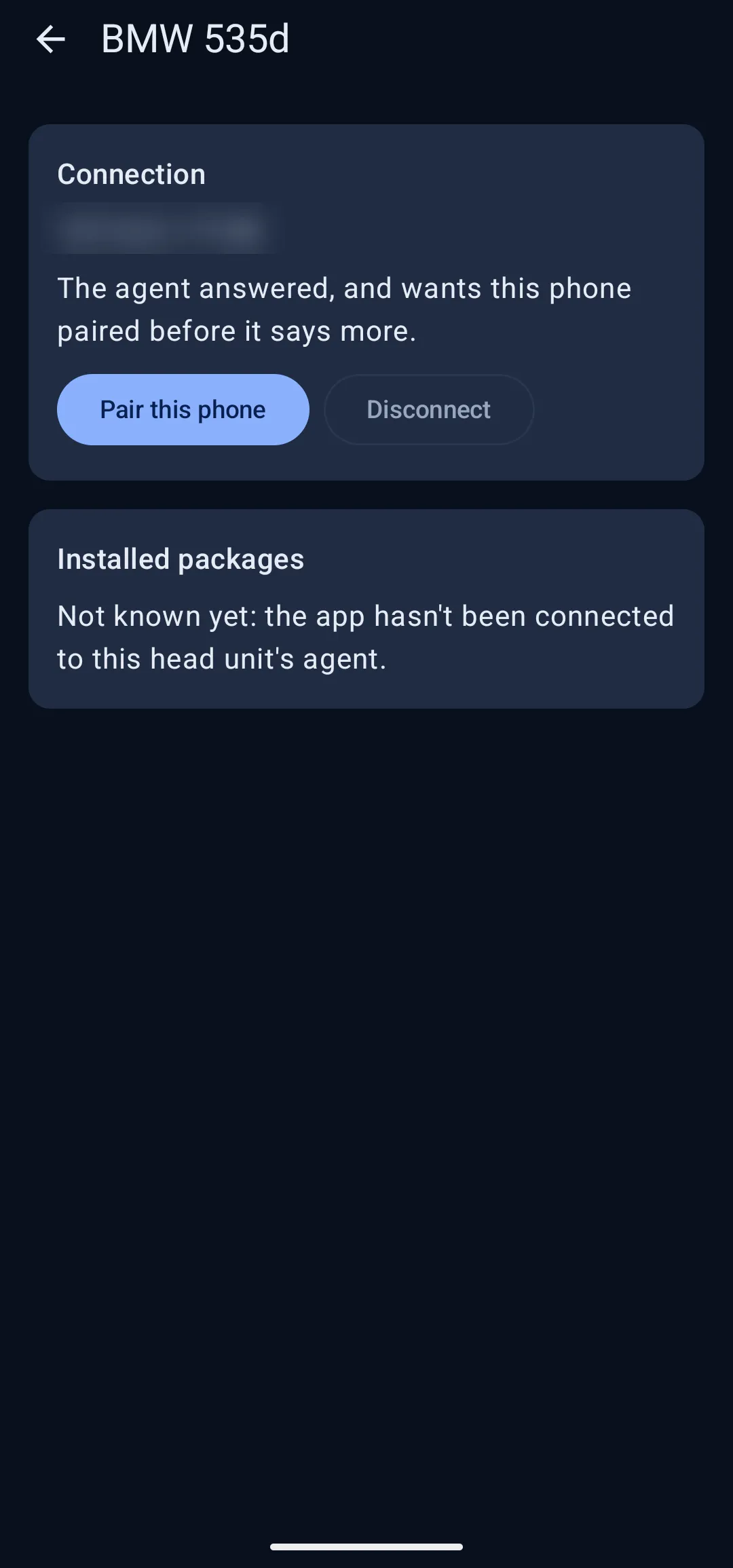
Connect to your car
In the app, add your head unit from the Bluetooth devices paired with your phone, then tap Connect. The Agent answers and says it wants this phone paired before it does anything else.
- 2
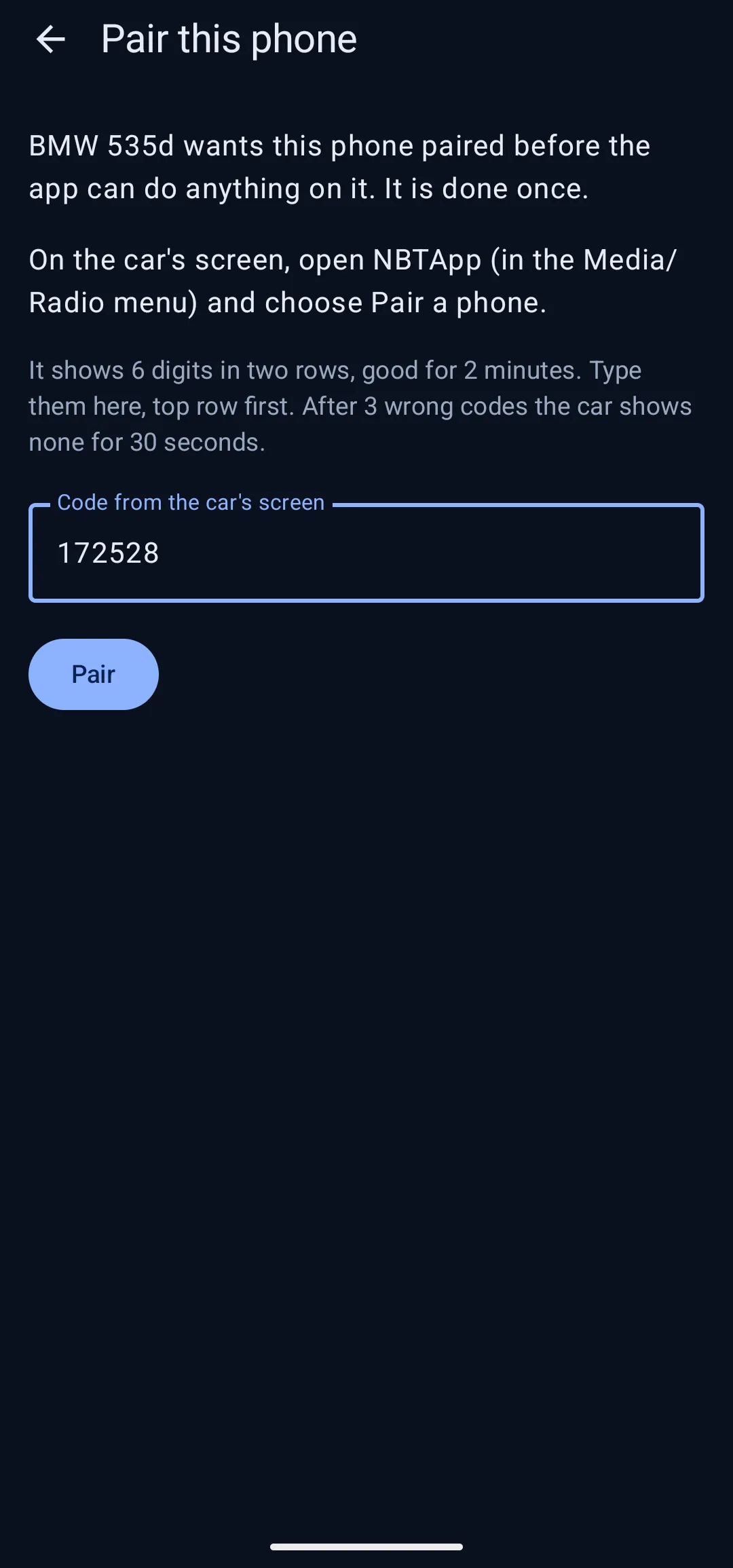
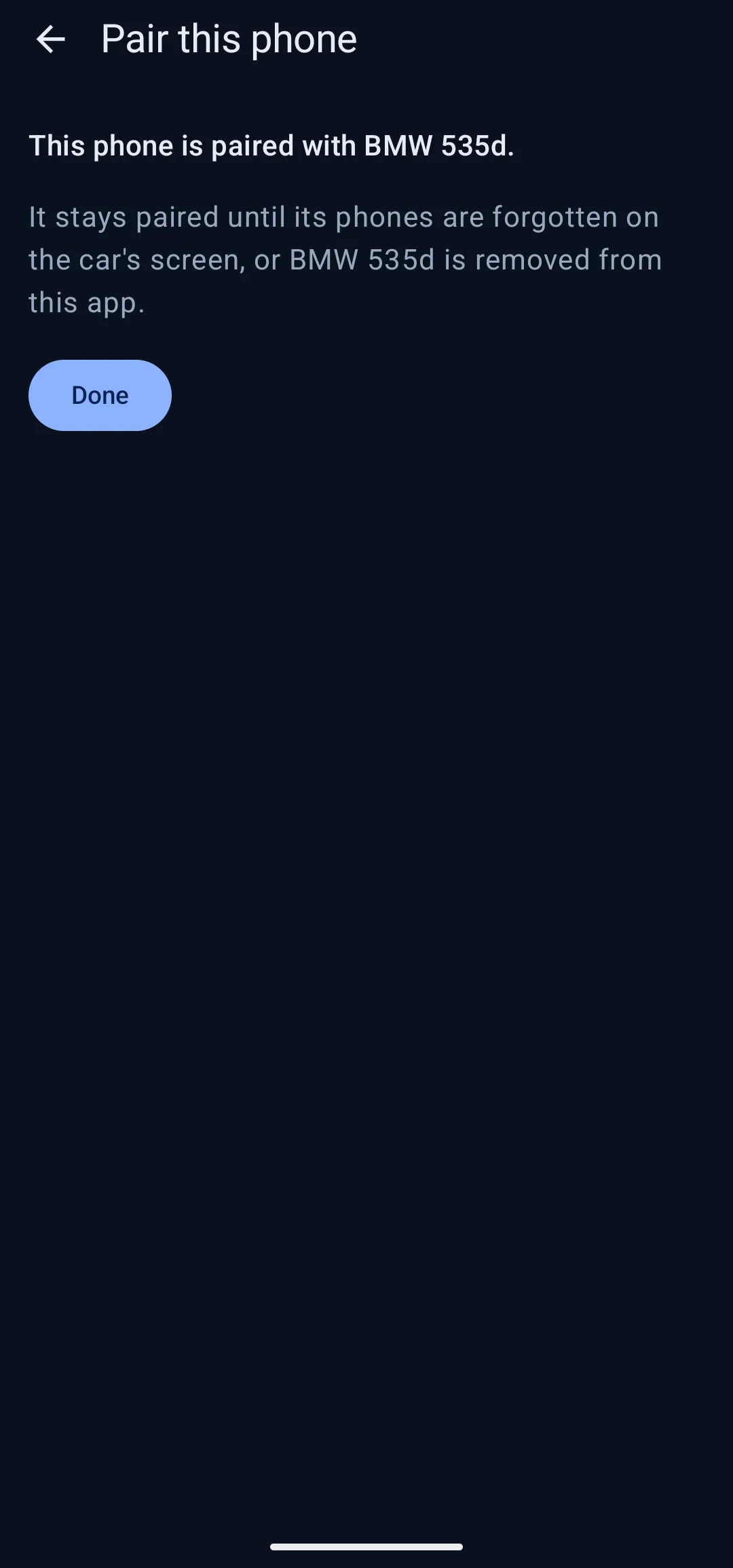
Enter the code and pair
The head unit shows a code of six digits. Type it into the app. You only do this once: the phone stays paired until you forget it on the car’s screen or remove the car from the app.
- 3
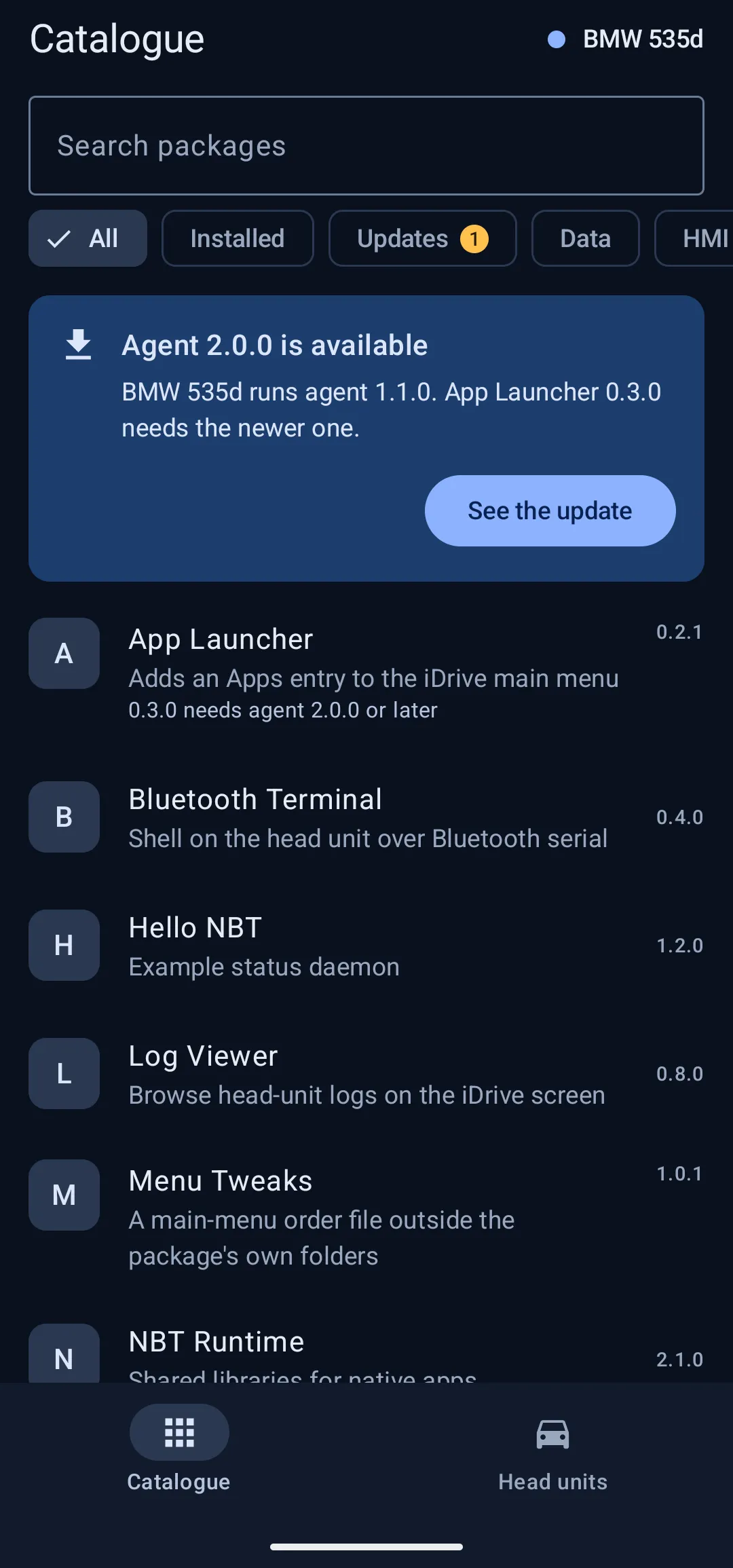
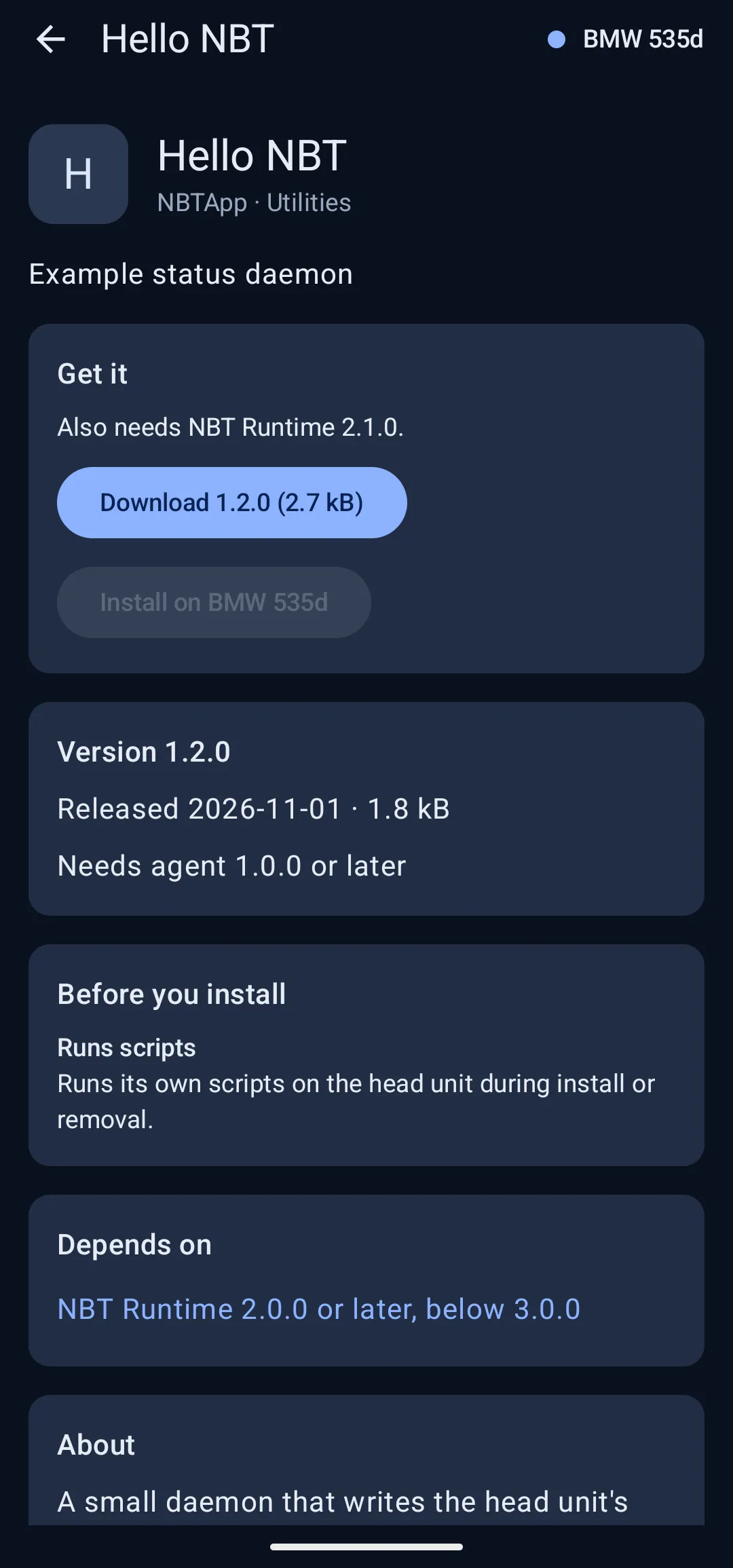
Pick an app
Browse the catalogue and open an app to see what it needs. “Before you install” lists anything worth knowing first, such as scripts that run on the head unit.
- 4
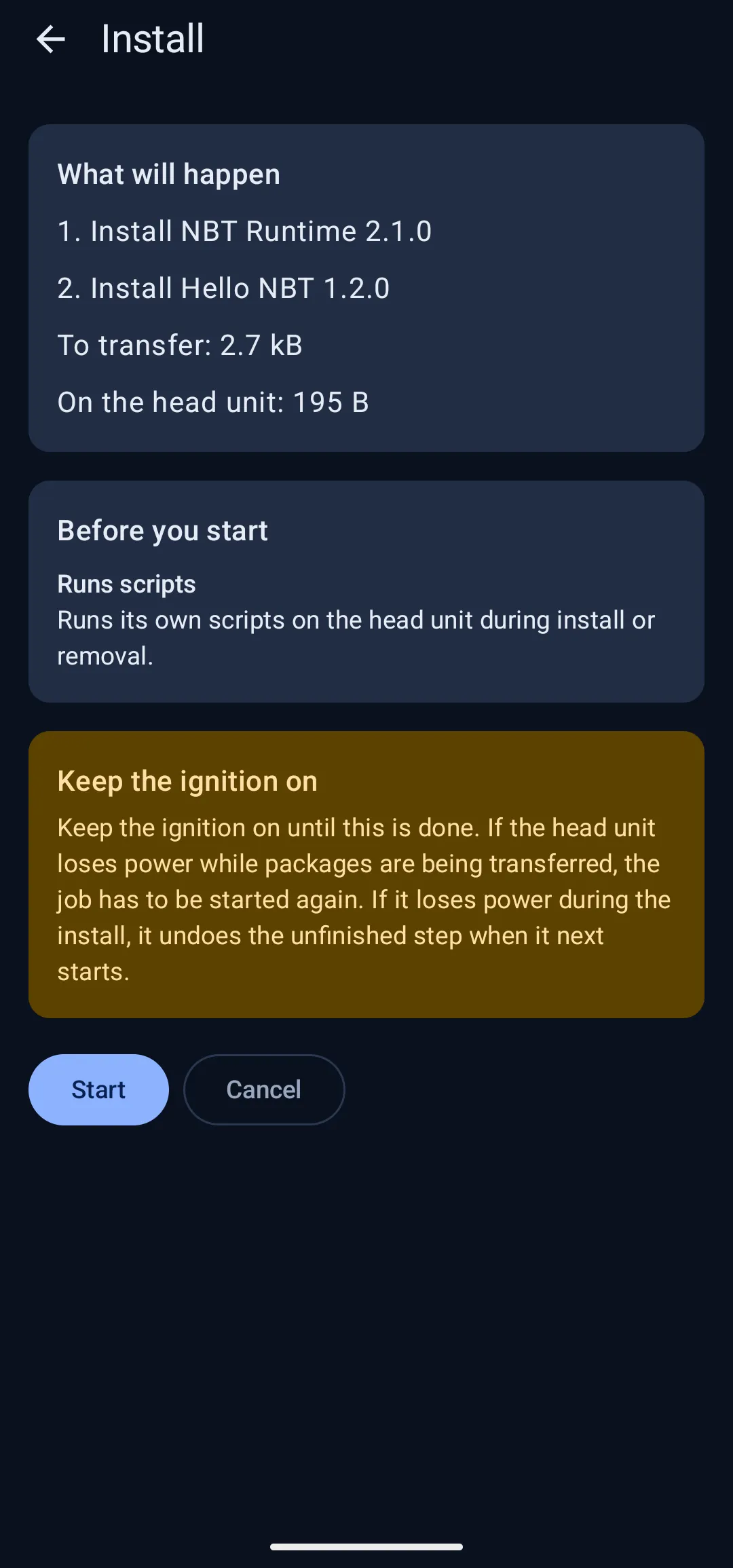
Check the plan and start
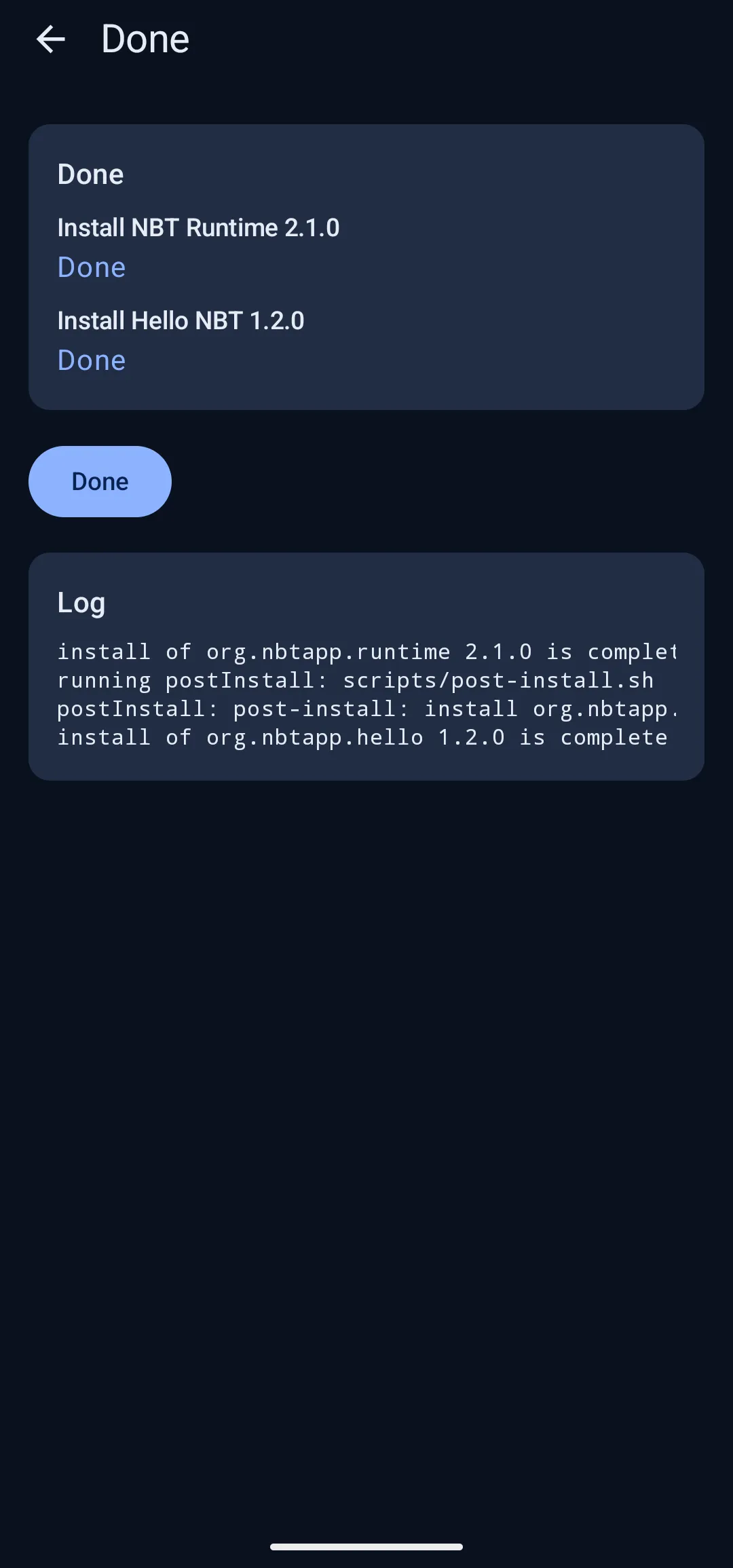
Download the package, then Install. The app lists each step, how much it will send, and asks you to keep the ignition on until it’s done. Tap Start and watch it finish.
Updating
Updates don’t install themselves. Check the changelog for new versions, then download and install the new APK the same way. It installs over the old version and keeps your paired head units. Don’t uninstall first, or you’ll lose them and have to pair again.
Checking a download
Every version of the APK is signed with the same certificate. Its SHA-256 fingerprint is:
843dd6519def36860dfff183634424753b00a059846d6e2662ba608bff04d587
You can check it with apksigner verify --print-certs <file> from the Android SDK build tools. Android also checks it for you on every update, and refuses an update signed with a different certificate.